Step 1: Calibrate Console System HDR with HGiG Before Booting
Paso 1: Calibrar el HDR del Sistema en Consola con HGiG Antes de Iniciar
GTA VI's RAGE engine relies directly on the system-level HDR calibration profile registered in your PS5, PS5 Pro, or Xbox Series X settings. If your TV has Dynamic Tone Mapping (DTM) switched on while adjusting system values, your console's test patterns will report inaccurate peak luminescence thresholds, causing double-tone mapping that washes out sunset highlights along Ocean Drive.
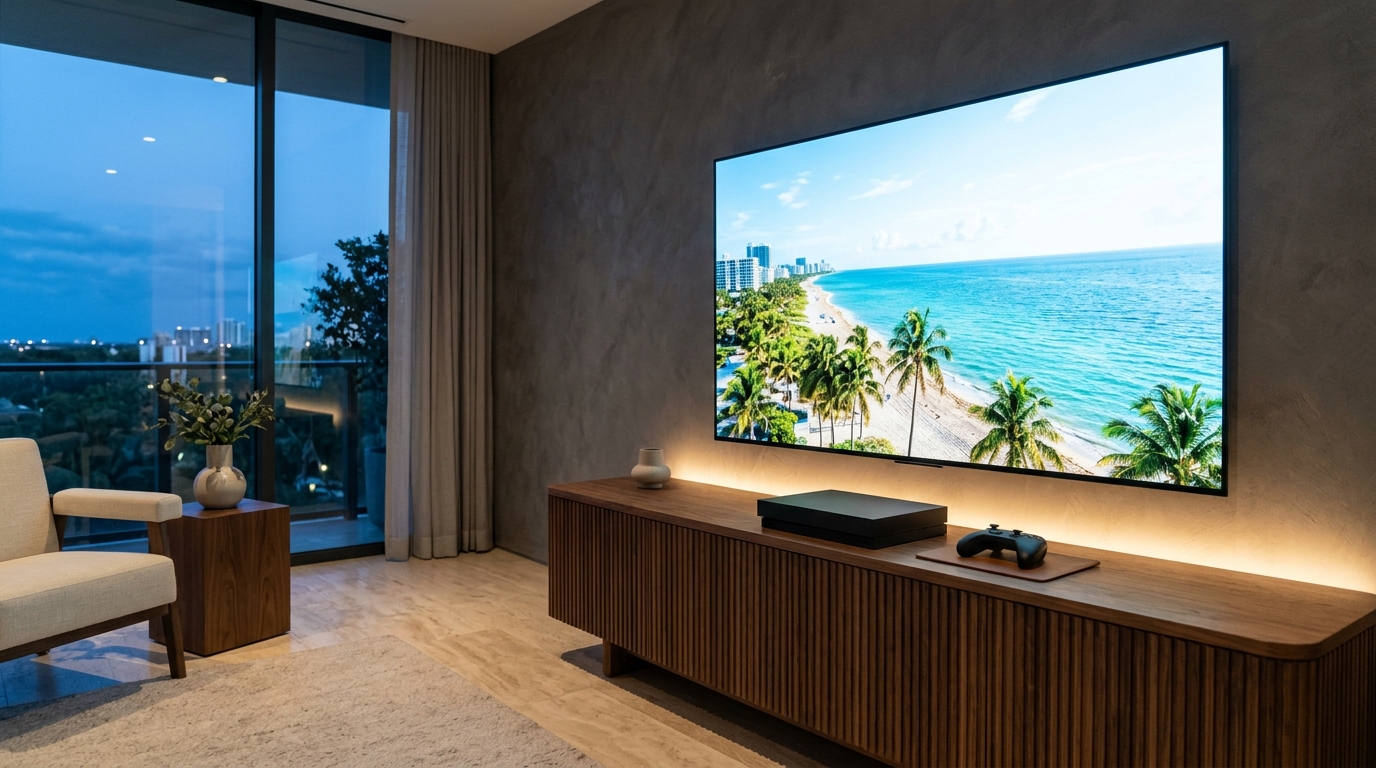
Set your OLED's HDR tone mapping mode to 'HGiG' (or 'Off' on older displays without HGiG metadata passthrough). Then run the console's native HDR adjustment tool. On PS5, set screens 1 and 2 to the exact click where the symbol completely disappears against pure white, and set screen 3 (black floor) to the absolute lowest click (0 nits).
El motor RAGE de GTA VI toma como base directa el perfil de calibración HDR a nivel de sistema registrado en tu PS5, PS5 Pro o Xbox Series X. Si tu televisor tiene activado el Mapeo de Tonos Dinámico (DTM) mientras ajustas los valores del sistema, los patrones de prueba de la consola registrarán umbrales de luminancia máxima inexactos, provocando un doble mapeo que decolora los atardeceres de Ocean Drive.
Ajusta el modo de mapeo HDR de tu pantalla OLED a 'HGiG' (o 'Apagado' en televisores más antiguos sin passthrough de metadatos HGiG). Luego ejecuta la herramienta de ajuste HDR nativa de tu consola. En PS5, configura las pantallas 1 y 2 en el clic exacto donde el símbolo desaparece completamente sobre fondo blanco, y la pantalla 3 (piso de negros) en el clic más bajo absoluto (0 nits).
- Turn Dynamic Tone Mapping OFF on your display and switch Tone Mapping to HGiG in Game Optimizer mode.
- Navigate to PS5 Settings > Screen and Video > Adjust HDR, or Xbox Settings > TV & Display Options > Calibrate HDR.
- Align peak clipping points so specular highlights vanish exactly at your panel's rated ceiling.
- Set the minimum black level screen to the bottom click to lock in true 0-nit black response.
- Desactiva el Mapeo de Tonos Dinámico (DTM) en tu pantalla y selecciona HGiG dentro del menú Game Optimizer.
- Ve a Ajustes de PS5 > Pantalla y vídeo > Ajustar HDR, o Configuración de Xbox > Opciones de pantalla y TV > Calibrar HDR.
- Alinea los puntos de recorte para que los brillos especulares desaparezcan justo en el techo nativo del panel.
- Fija la pantalla de nivel mínimo de negro en el último clic inferior para asegurar una respuesta pura de 0 nits.
Step 2: Dialing In-Game Peak Brightness, Paper White & Black Point
Paso 2: Ajuste de Brillo Máximo, Blanco de Referencia y Nivel de Negro en el Juego
Once in GTA VI, pause and head to Settings > Display > HDR Calibration. The game presents three distinct sliders: Peak Brightness, Paper White, and Black Point. Default values tend to push Paper White above 300 nits, which turns phone notifications, speedometer UI, and mini-map overlays into blinding flashbangs during nighttime cruising.
Peak Brightness dictates the maximum luminance of localized specular highlights—such as police light bars, chrome bumper glints, and neon motel signage in Vice Beach. Paper White controls diffuse white reflections and UI elements. Set Black Point strictly to 0.000; raising it even to 0.05 introduces an unnatural gray film across the shadowy Grassriver swamps.
Una vez dentro de GTA VI, pausa y dirígete a Ajustes > Pantalla > Calibración HDR. El juego presenta tres controles deslizantes: Brillo Máximo (Peak Brightness), Blanco de Referencia (Paper White) y Nivel de Negro (Black Point). Por defecto, el juego sitúa Paper White por encima de 300 nits, convirtiendo las notificaciones del teléfono, el velocímetro y el minimapa en destellos cegadores al conducir de noche.
El Brillo Máximo dicta la luminancia de los brillos especulares localizados, como las sirenas de patrullas, cromados de vehículos y carteles de neón en Vice Beach. Paper White controla las superficies blancas difusas y la interfaz. Fija el Nivel de Negro estrictamente en 0.000; elevarlo incluso a 0.05 añade una niebla grisácea sobre los pantanos de Grassrivers.
- Peak Brightness: Set to 800 nits for LG C2/C3/C4; set to 1,000 nits for Samsung S90C/S95C/S95D or Sony A95L QD-OLEDs.
- Paper White: Set between 180 and 220 nits to keep the HUD readable without causing eye fatigue during long sessions.
- Black Point: Keep locked at 0.000 to preserve panel-native infinite contrast and true black swamp water.
- Contrast Slider: Maintain the default 50 value; tweaking contrast shifts the mid-tone gamma curve and crushes Jason and Lucia's clothing textures.
- Brillo Máximo: Configura en 800 nits para LG C2/C3/C4; ajusta a 1.000 nits para QD-OLED como Samsung S90C/S95C/S95D o Sony A95L.
- Blanco de Referencia: Establece entre 180 y 220 nits para mantener la interfaz legible sin fatiga ocular en sesiones prolongadas.
- Nivel de Negro: Déjalo en 0.000 para preservar el contraste infinito nativo del panel y el agua oscura de los pantanos.
- Control de Contraste: Mantén el valor por defecto de 50; modificarlo distorsiona la curva gamma de tonos medios y empasta las texturas de la ropa.
Step 3: Fixing Raised Blacks in Night Driving & Swamp Fog
Paso 3: Solución para Negros Lavados en Noches de Conducción y Niebla de Pantanos
Players exploring the outskirts of Vice City often report that night scenes appear somewhat elevated or washed out compared to GTA V. This is caused by GTA VI's dynamic volumetric atmosphere and realistic humidity simulation in the Leonida climate. The game renders real ambient moonlight scatter rather than forcing artifice-level darkness everywhere.
Do not lower your TV's overall Brightness or Black Level parameter to compensate for atmospheric fog, as doing so clips near-black shadow gradation below 5%. Let the 0.000 game Black Point combined with calibrated HGiG handle the dynamic range; pitch-black interiors and unlit alleys will retain deep black floors while open swamps naturally catch ambient moon glares.
Muchos jugadores que exploran los alrededores de Vice City notan que las escenas nocturnas parecen ligeramente elevadas o grisáceas respecto a GTA V. Esto se debe a la densa atmósfera volumétrica y la simulación de humedad tropical de Leonida. El motor RAGE simula la dispersión de luz lunar ambiental real en lugar de forzar oscuridad artificial permanente.
No reduzcas el brillo global ni el nivel de negro en el menú propio del televisor para compensar la niebla, ya que recortarás los detalles en sombras por debajo del 5%. Permite que el valor 0.000 del juego junto con HGiG gestionen el rango dinámico; los interiores sin iluminación conservarán negros profundos mientras las zonas abiertas reflejan la luna con naturalidad.
- Verify your HDMI Black Level setting matches across console and TV (Console: Auto / TV: Auto or Limited).
- Avoid using TV Dynamic Contrast enhancements or 'Vivid' picture presets that ruin color grading.
- Enable 120Hz Output on PS5/Xbox to reduce input latency on 30 FPS console output via ALLM.
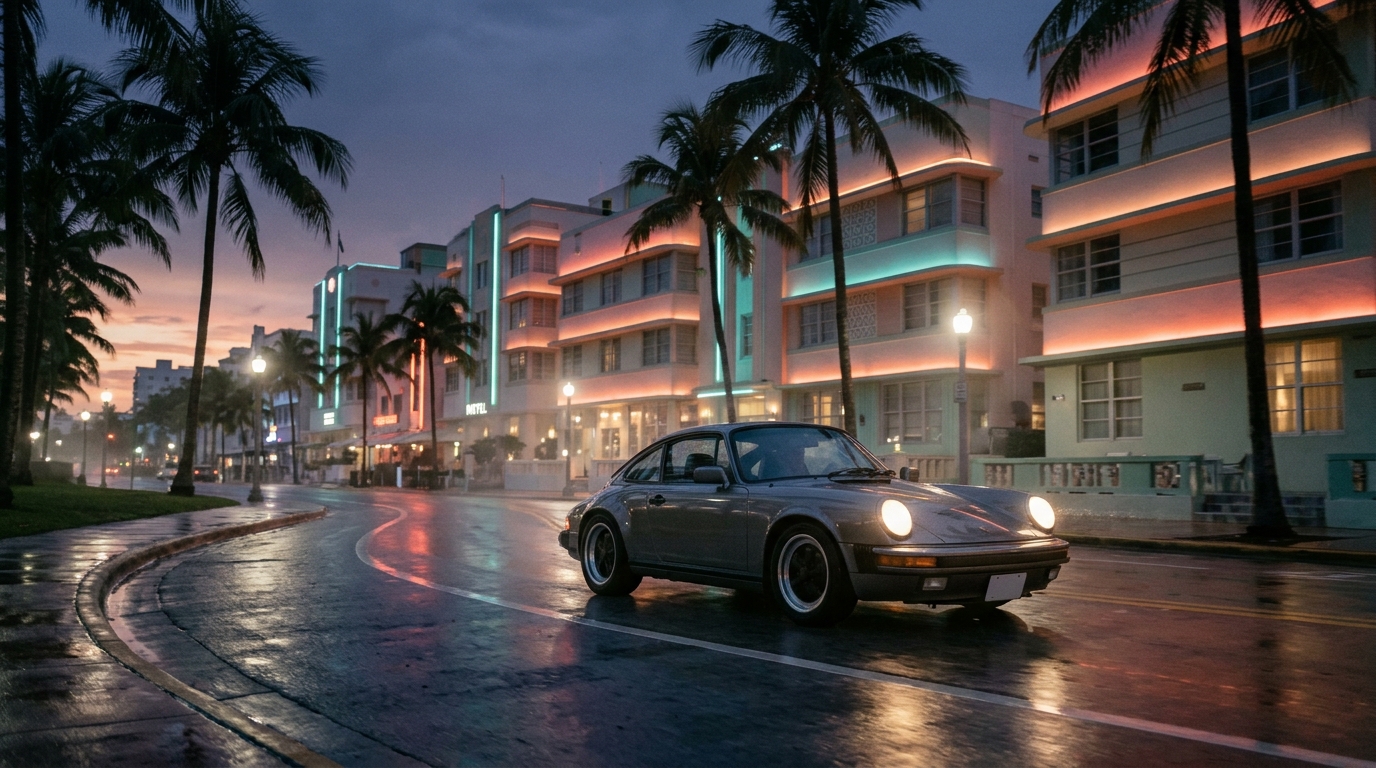
- Test your final calibration in two benchmark spots: the neon corridor of Ocean Drive and unlit bayous near Grassrivers.
- Verifica que el Nivel de Negro HDMI coincida entre consola y TV (Consola: Automático / TV: Automático o Limitado).
- Evita el Contraste Dinámico de la TV o modos de imagen 'Vívido' que desvirtúan la colorimetría artística.
- Activa la salida de 120Hz en PS5/Xbox para recortar la latencia de entrada a 30 FPS mediante ALLM.
- Comprueba la calibración final en dos puntos de referencia: el pasillo de neón de Ocean Drive y los pantanos oscuros de Grassrivers.