How to Enter Cinematic Camera & Activate Auto-Drive
Cómo Entrar en Modo Cinematográfico y Activar el Piloto Automático
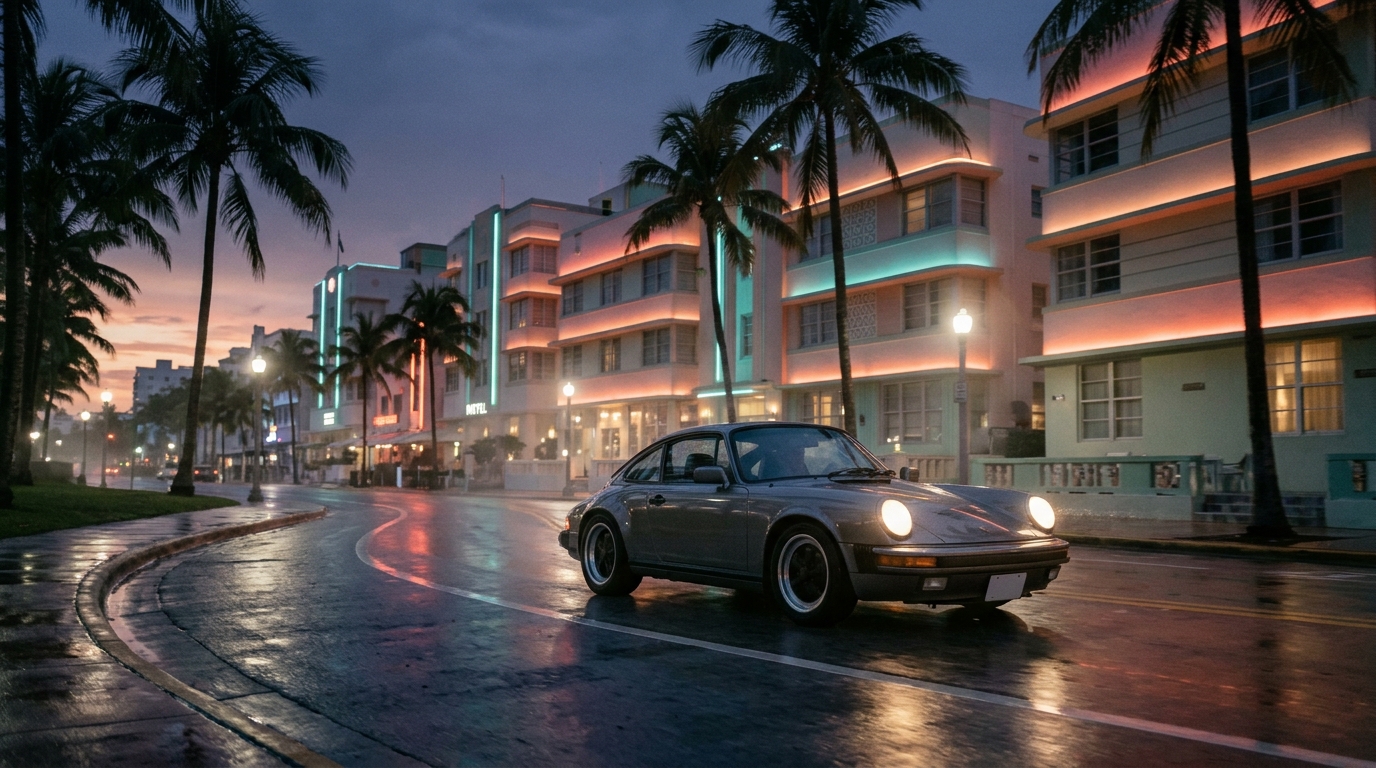
Rockstar Games has expanded on the cinematic travel mechanic pioneered in Red Dead Redemption 2, bringing an intelligent vehicular cruising system to GTA VI. When traveling across the sprawling highways between Vice City, the Keys, and the Grassrivers wetlands, players can sit back and let the game pilot their car while sweeping cinematic angles capture the neon landscape.
To make Auto-Drive follow a specific destination rather than wandering aimlessly down roads, always mark a custom waypoint or select an active mission objective on your map before initiating cinematic mode. Once engaged, the vehicle adheres to traffic laws, matches prevailing speed limits, steers around civilian cars, and negotiates intersections automatically.
Rockstar Games ha perfeccionado el sistema de viaje cinematográfico que estrenó en Red Dead Redemption 2, integrando un crucero vehicular inteligente en GTA VI. Al recorrer las extensas autopistas entre Vice City, los Cayos y los pantanos de Grassrivers, puedes relajarte y dejar que el juego conduzca mientras tomas panorámicas cinematográficas de los paisajes iluminados por neón.
Para que Auto-Drive siga una ruta concreta en lugar de circular al azar, fija siempre un destino personalizado o selecciona una misión activa en tu mapa antes de entrar al modo cinematográfico. Una vez activo, el coche respeta las normas de tráfico, regula su velocidad, esquiva vehículos civiles y toma intersecciones de forma totalmente autónoma.
- Open your map and place a waypoint marker on your desired location or mission trigger.
- Enter any standard land vehicle or watercraft and begin driving forward.
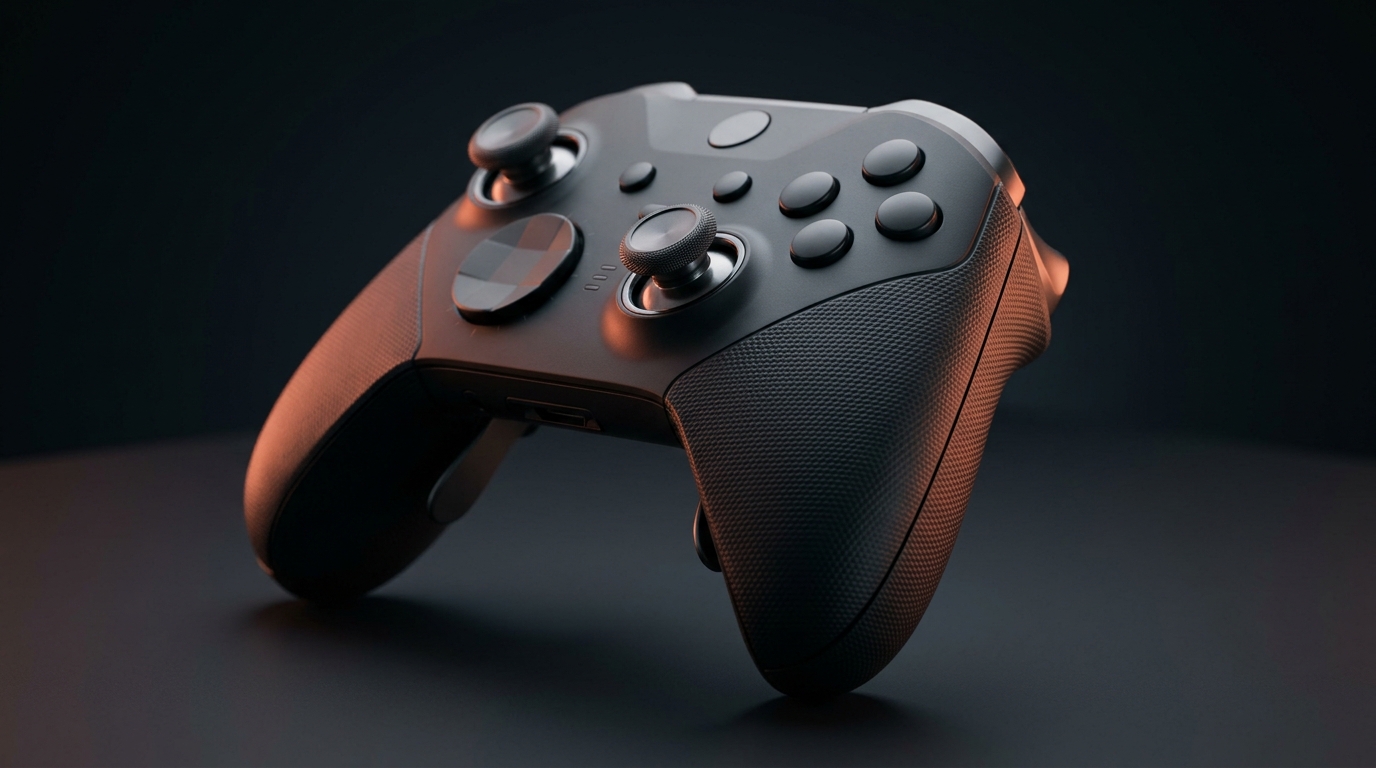
- Hold Down on the D-Pad to bring up the quick camera wheel, then press Options (PS5) or Menu (Xbox).
- Hold Circle (PS5) or B (Xbox) for 1.5 seconds until the bottom-right HUD displays 'Auto-Drive Active'.
- Release the accelerator trigger (R2/RT); your vehicle will cruise along the GPS trail autonomously.
- Abre el mapa y coloca un punto de ruta sobre tu destino deseado o misión.
- Sube a cualquier vehículo terrestre o embarcación y avanza hacia adelante.
- Mantén presionado Abajo en la cruceta para abrir el dial de cámara y pulsa Options (PS5) o Menú (Xbox).
- Mantén presionado Círculo (PS5) o B (Xbox) durante 1,5 segundos hasta que el HUD indique 'Auto-Drive Activo'.
- Suelta el gatillo de aceleración (R2/RT); el automóvil seguirá la ruta GPS de manera completamente autónoma.
Controlling Camera Angles & Auto-Drive Safety Settings
Control de Ángulos de Cámara y Ajustes de Seguridad de Conducción
While in Cinematic Camera mode, you have complete creative control over framing without interrupting Auto-Drive. Clicking the Right Stick (R3) switches between dynamic chase cams, high-altitude police chopper views, ultra-low ground tracking cams, and panoramic roadside drive-bys. Moving the Right Thumbstick lets you nudge the framing or rotate the focal point around Jason and Lucia.
Inside the Settings menu under Accessibility and Gameplay, Rockstar included an important setting: 'Auto-Drive Restrictions'. By default, this is set to Restricted, meaning Auto-Drive instantly aborts if police open fire, a tire blows out, or you enter a 2-star wanted search zone. Setting this to Unrestricted allows your AI co-pilot to attempt evasive navigation through gunfire and traffic jams while you manage cinematic recording or seat-swapping defense.
Dentro del modo de Cámara Cinematográfica, conservas el control visual de la escena sin cortar el piloto automático. Al pulsar el stick derecho (R3), alternas entre planos de persecución dinámicos, tomas aéreas estilo helicóptero policial, tiros a ras de suelo y barridos estáticos desde la acera. Mover el stick derecho te permite desplazar el encuadre y rotar el enfoque sobre Jason y Lucia.
En el menú de Ajustes, dentro de Accesibilidad y Jugabilidad, Rockstar incorporó la opción 'Restricciones de Auto-Drive'. Viene en 'Restringido' por defecto, cancelando el crucero automático si la policía dispara, revientas un neumático o entras a una zona de búsqueda de 2 estrellas. Si lo cambias a 'Sin restricciones', la IA mantendrá el rumbo esquivando disparos y atascos mientras grabas tus clips o te defiendes cambiando de asiento.
- Cycle Angles: Press R3 / Right Stick click to switch focal framing instantly.
- Slow-Mo Cutaway: Hold L3 while passing scenic landmarks to slow time down by 50% for 3 seconds.
- Manual Override: Tapping L2/LT (brakes) or steering hard on the left stick immediately hands full manual steering back to the player.
- Disengage View: Hold Down on the D-Pad to snap right back to your default third-person driving camera.
- Cambiar Planos: Pulsa el stick derecho (R3) para alternar las tomas en tiempo real.
- Cámara Lenta Escénica: Mantén presionado L3 cerca de monumentos para ralentizar el tiempo al 50% por 3 segundos.
- Anulación Manual: Tocar el freno (L2/LT) o girar con fuerza el stick izquierdo te devuelve el control manual de inmediato.
- Salir de Modo Cine: Mantén presionado Abajo en la cruceta para volver a tu cámara en tercera persona habitual.